Troubleshooting connection between DrugPak Workstations and DrugPak Client/Server Database Engine
Background
Environment
Many installations of DrugPak include the DrugPak Client/Server Database Engine, software that is installed and run at the server where DrugPak is installed to, but not all do; it is an optional component of a DrugPak software installation. If the DrugPak Client/Server Database Engine is installed then at the server there will be a service named "Advantage Database Server" and a group in the Windows Start menu named Advantage Database Server, in that group there is a program named Advantage Configuration Utility, running that program will illustrate the status of the service. If that service is installed and running then normally a DrugPak workstation will connect to the database engine without any special configuration.
Symptom
A DrugPak workstation that fails to connect to the database engine may encounter errors when running DrugPak, typically an error 217. In other cases DrugPak will open but performance is degraded. If DrugPak opens the connection to the service can be observed by looking into the Tools menu > Advanced > Server Monitor, at the top left of that window a light bulb icon will display, if the text "Local" displays next to the light bulb then DrugPak is not connecting to the database engine.
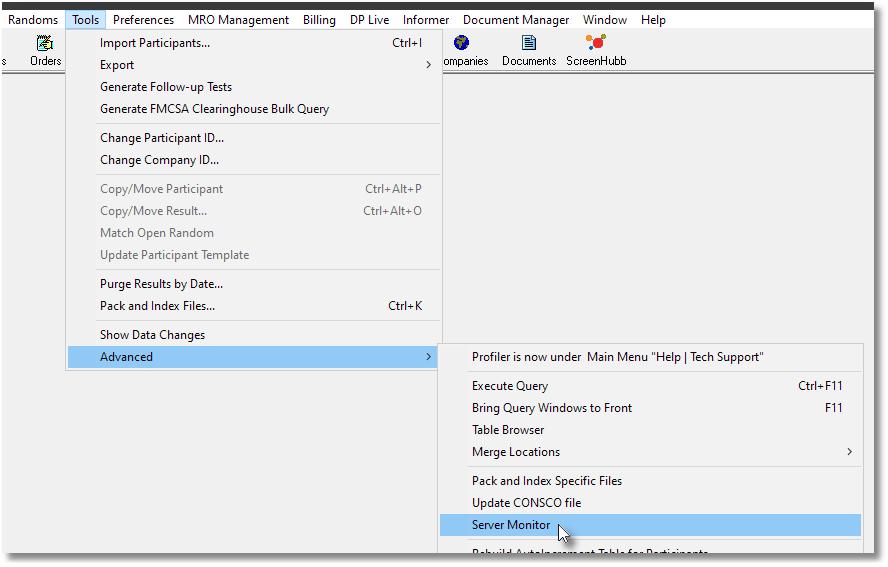
A DrugPak that is connecting to the Advantage Database Server will display like this:
A DrugPak that is not connecting to the Advantage Database Server will display like this:
Troubleshooting
1) Is Advantage Database Server Installed/Running? Verify that the Advantage Database Engine software is installed and running at the server. The best way to verify this (and confirm normal operations) is to run the Advantage Configuration Utility at the server, a program normally located in the Windows Start menu of the Server, possibly a shortcut on the Desktop of the server.
This program will normally display that the Server Up Time is actively counting seconds and will illustrate values under the "Current" column for Users, Connections, Work Areas, Tables and Index Files.
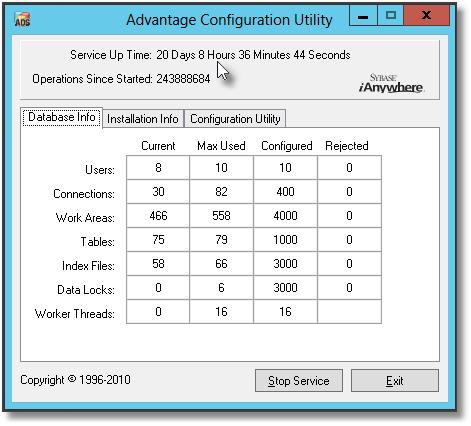
If the Advantage Configuration Utility is not running click the "Start Service" button at the bottom of the window.
If the Advantage Configuration Utility is not present on the server that may indicate that the service is not currently installed. See "Installing the DrugPak Client/Server Database Engine" for information on installing the service.
2) Is Anything Blocking Communication Between the Workstation and the Server? If the Advantage Database Engine is installed and running but DrugPak is failing to connect to the database engine it may be that communication between the workstation and the server is being blocked. The DrugPak Client/Server Database Engine operates though port 6262 using both TCP and UDP networking. If a firewall is in place at the server, the workstation or any other component of the network between the computers it may cause a failure to connect. Most commonly only the firewall at the server has to be modified to allow this traffic, so it is best to start there. If that does not resolve the problem then opening these ports at the workstation may be necessary. If there are any firewalls at other resources such as router or hub, those may need to be opened as well. Opening the ports through the firewall may resolve this problem;
TCP Inbound port 6262
TCP Outbound port 6262
UDP Inbound port 6262
UDP Outbound port 6262
3) The Workstation May Be Unable to Successfully Discover the Server. Windows networking functions may impose limits that cause a workstation to fail to 'discover' the server in the network, in this situation there are adjustments that can be made at the workstation that can skip the discovery phase of connection and establish the connection despite the network limitations. This action can be performed by using the "Advanced Database Server Setup" option that is part of DrugPak's Workstation Setup. The Server IP should be the local network IP address of the server where DrugPak is installed to. The Server Port by default is 6262.
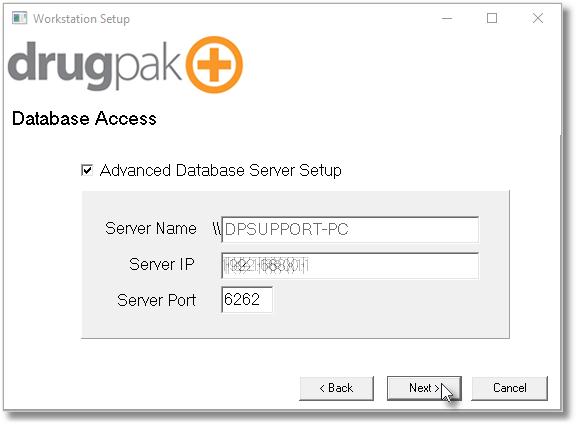
Details on using the Workstation Setup are available at this separate article. This Advanced Database Server Setup will automatically modify the C:\Windows\ADS.ini file to configure this behavior, but if you encounter problems using the Advanced Server Configuration these steps can be performed manually (see "Modifying the ADS.ini file manually" below).
4) Verify that there is not an out-of-date ADS.ini interfering with the connection.
Windows often establishes a copy of the ADS.ini file and if that copy exists it will ignore changes made to the C:\Windows instance of the file. That copy is located in the C:\Users\%username%\AppData\Local\VirtualStore\Windows folder, you can simply delete the file from that 'VirtualStore' folder. Windows may re-establish the copy, that is fine.
In some cases an ADS.ini file may have been placed in the DrugPak folder at the server (that folder is sometimes named "DP50"). If this file exists then any workstation would try to use that ADS.ini instead of any other ADS.ini. That file can be opened using Notepad. Open the file and verify or correct the IP address displayed in the "LAN_IP" line.
Modifying the ADS.ini file manually (Instead of using the Advanced Database Server Setup in the Workstation Setup utility)
At any computer that experiences problems connecting to the DrugPak Client/Server database engine locate and open the file C:\Windows\ADS.ini file (it should open in Notepad)
That file may contain a 3-line segment in the following format:
[YourServerName]
LAN_IP=192.168.x.x
LAN_PORT=6262
where "YourServerName" is the Windows name of the server where DrugPak resides and "192.168.x.x" is the local IP of that machine.
If those lines exist and the IP address is inaccurate, simply update the IP address.
If those lines do not exist you can add them below the existing text.
It is common that Windows will not allow modifications to files that reside in the C:\Windows folder. To work around this restriction you can save the modified file to the desktop and then copy/paste the file into the C:\Windows folder where it will then replace the original file. (Windows will display a warning that replacing the file requires administrative rights, in that warning you can provide authorization and then the file will be placed into the C:\Windows folder.)
Additional troubleshooting information is available in the article "Using Advantage Data Architect (ARC) to Troubleshoot Connection to DrugPak Client/Server Database Engine"